![tagalys-logo white.png]](https://support.tagalys.com/hs-fs/hubfs/tagalys-logo%20white.png?height=40&name=tagalys-logo%20white.png)
The Bulk Copying by Product ID feature allows you to quickly source and replicate large groups of pinned products from one collection to another (or to a smart widget) without manually browsing or selecting each product one by one. In this guide, we will bulk copy 50 products from one collection into another using Product IDs.
Steps to bulk copy products using Product IDs
Step 1: Open the Source Collection's Curate Panel
Navigate to the collection containing the products you want to copy and open the Curate Panel.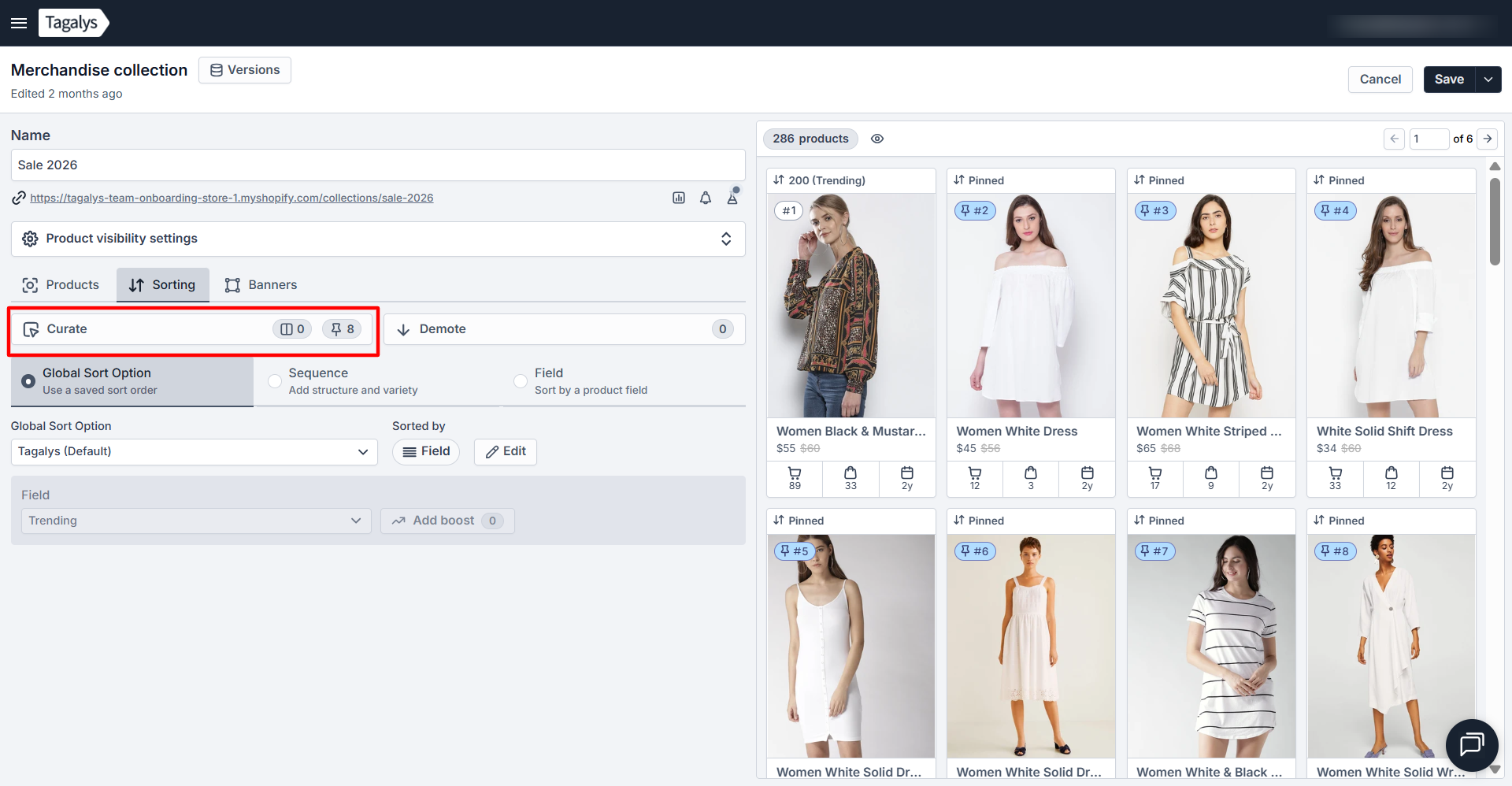
Step 2: Across the Source Collection
Click the Product List button located at the top left of the Curate Panel. 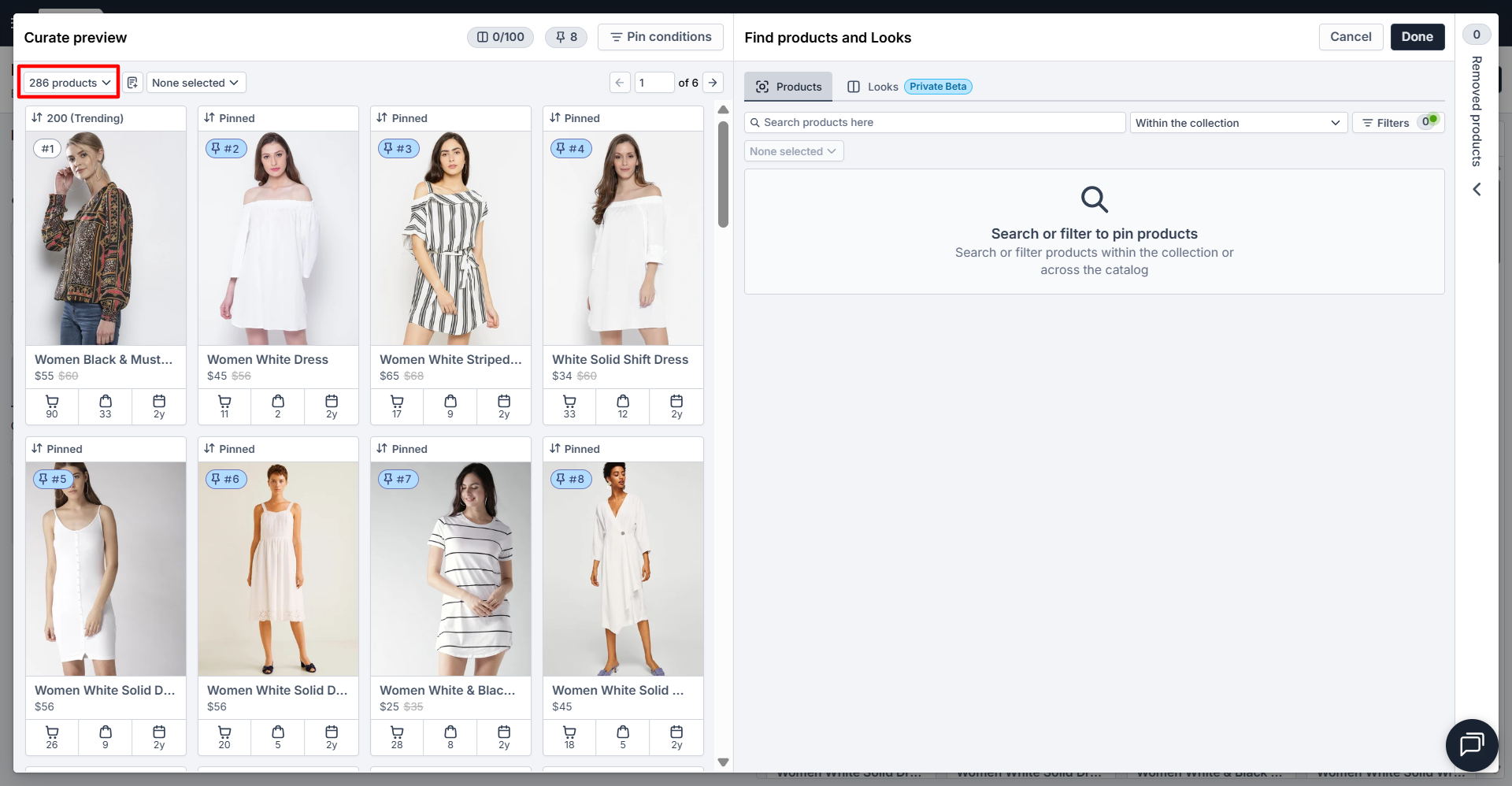
Open the ‘Pinned products IDs List’: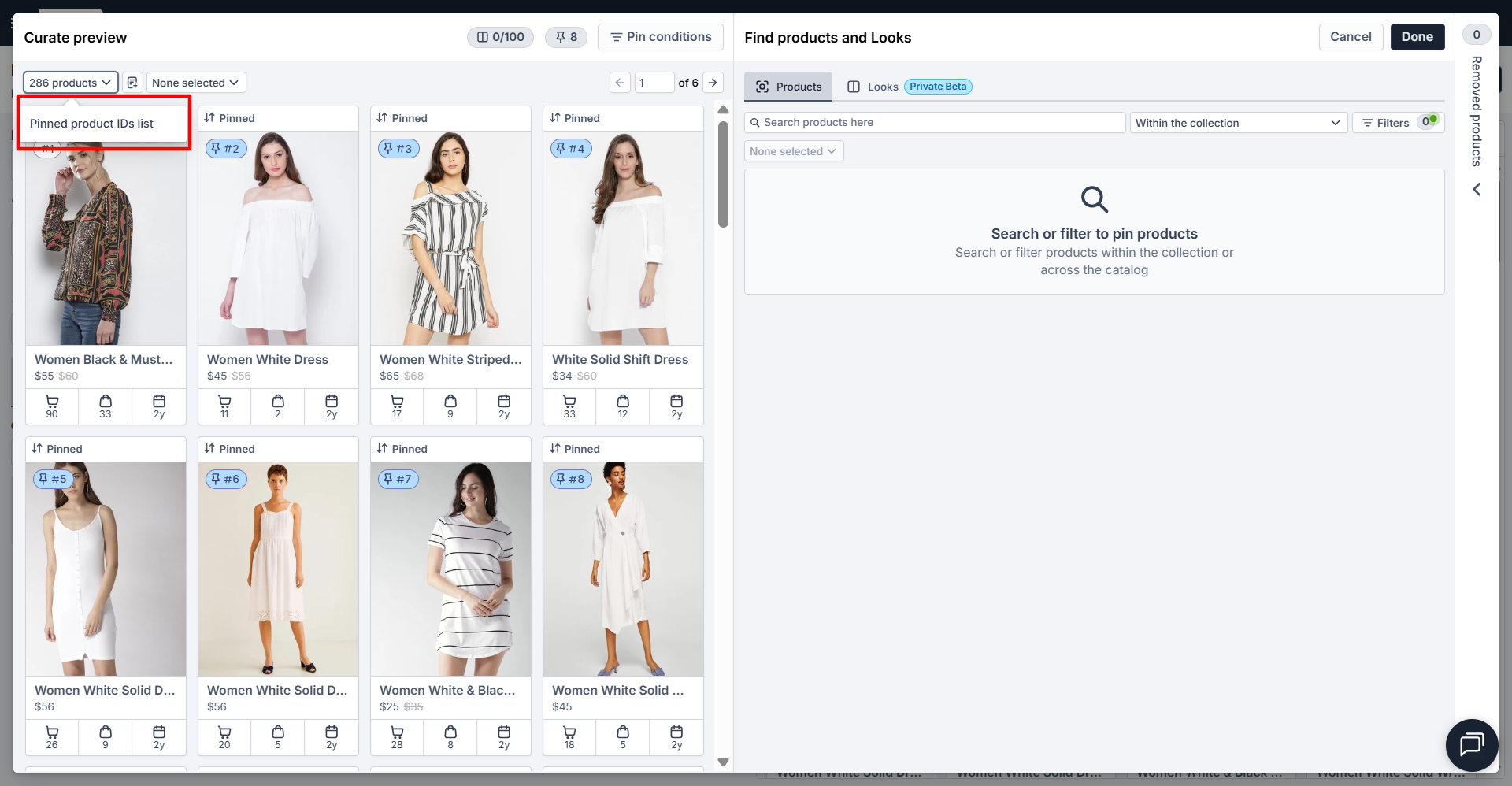
Select and copy the product IDs and close the window. 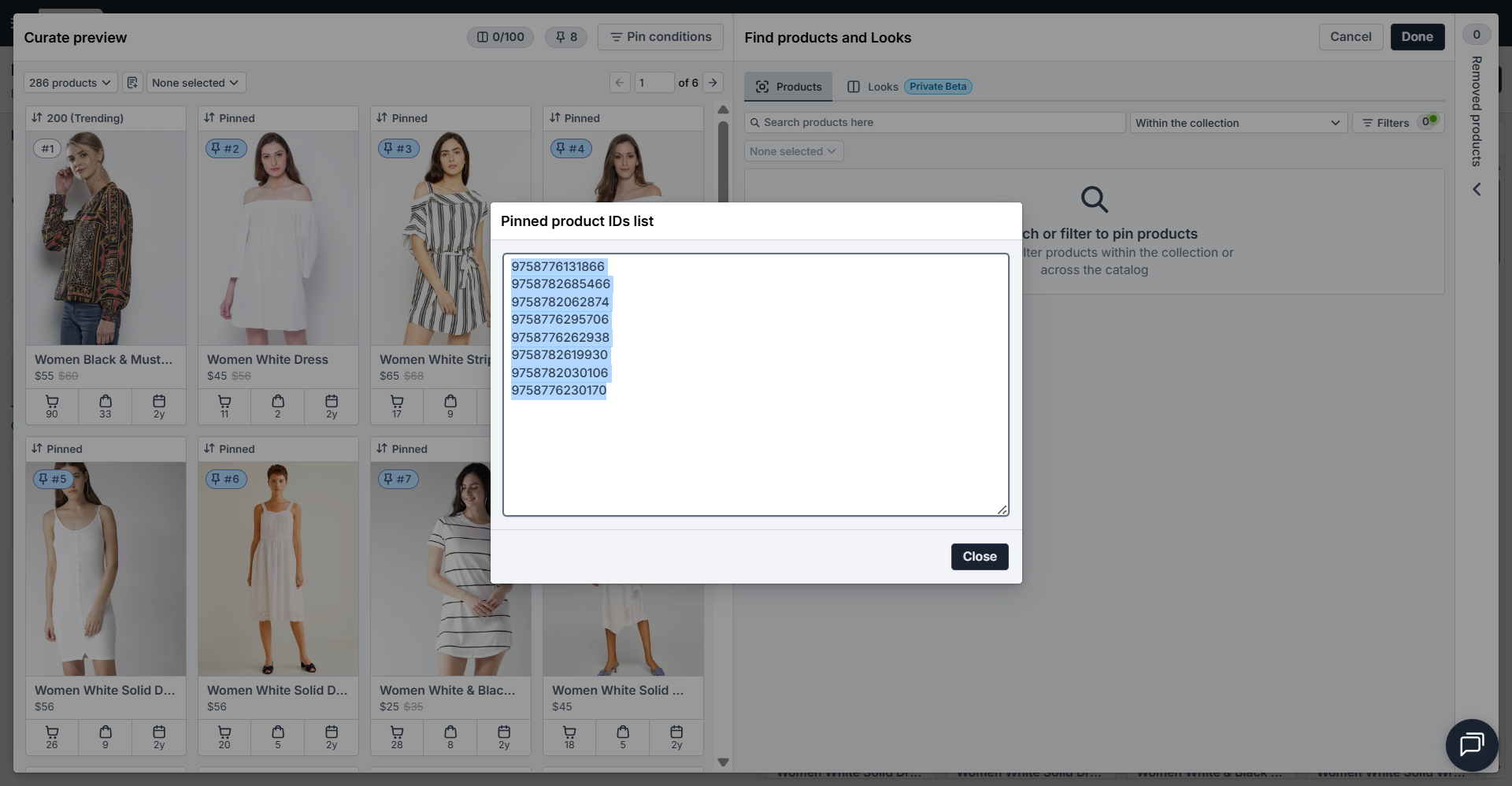
Step 3: Across the Target Collection
Navigate to the curate panel of the collection page or smart widget where you want to pin the same set of products.
Click the Bulk Pin Product ID/SKU tab on top of the curate panel 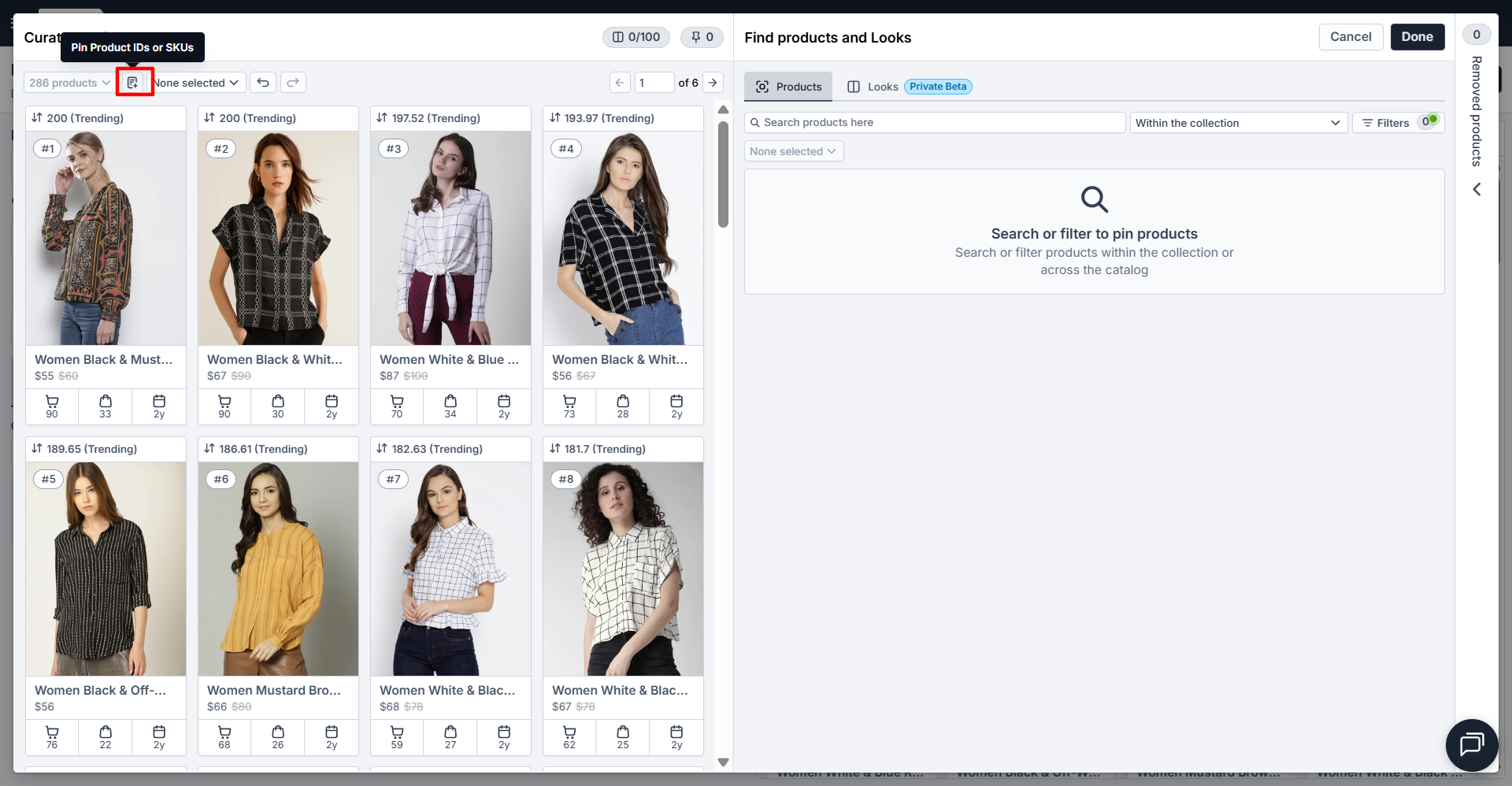
Paste the copied Product IDs into the text area.
Configure your desired validation options (e.g Ignore missing Product IDs).
Click on Pin Products to complete the action.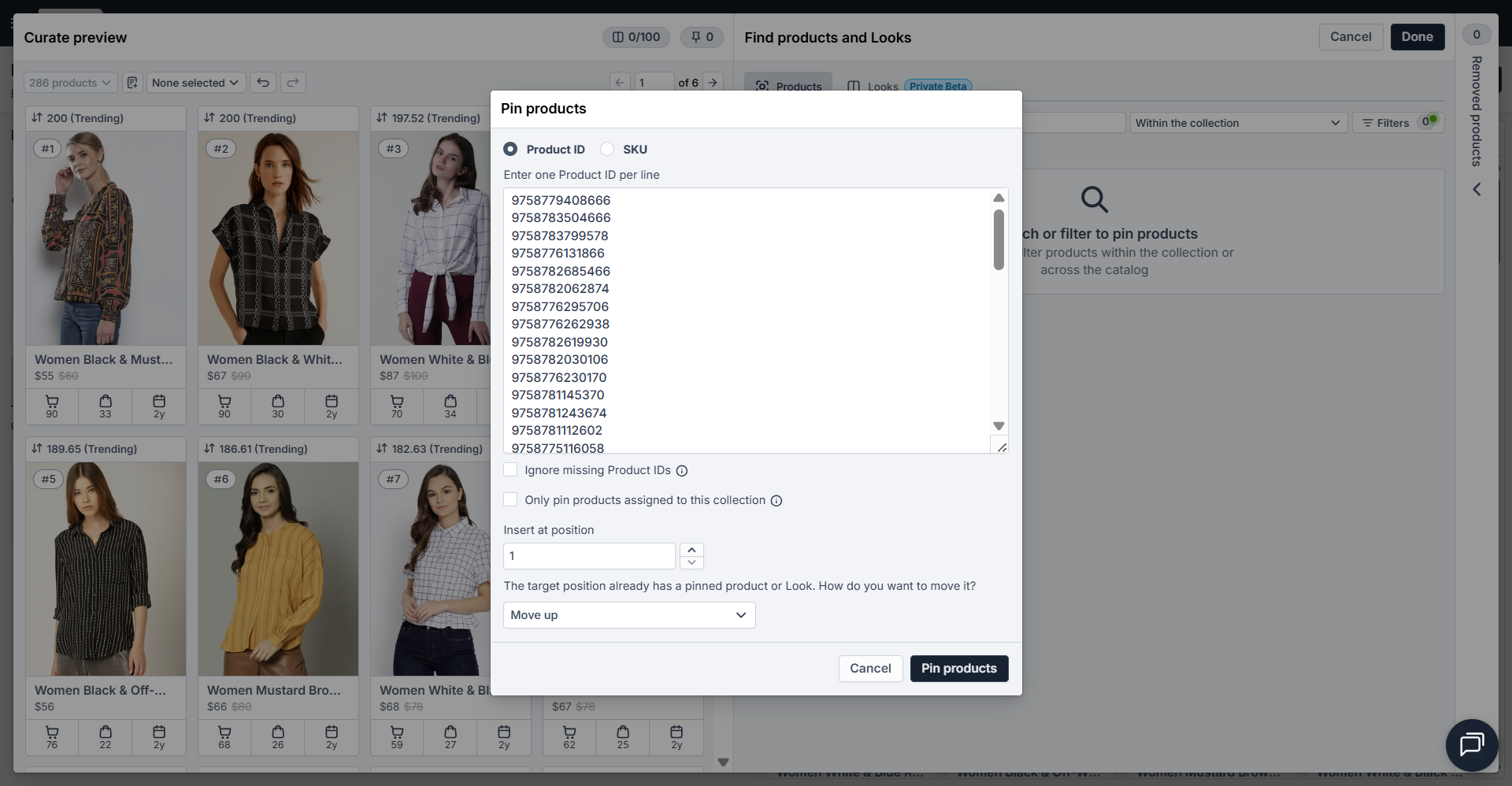
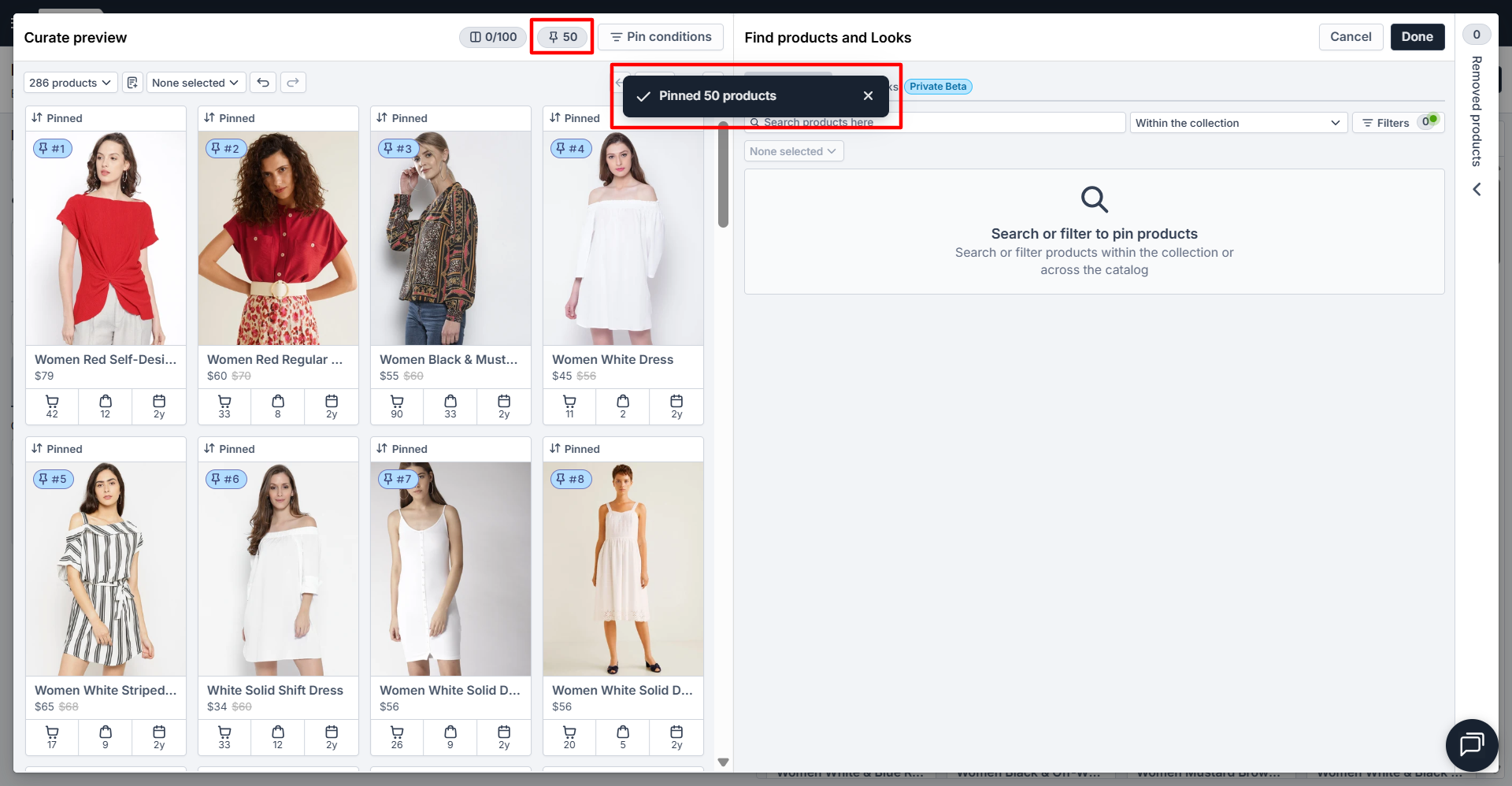
The products will pin automatically based on your selected validation settings. A confirmation badge (e.g., "Pinned 50 products") will appear at the top of the panel.
Review the preview grid, then click Done to save your changes.
Note: Bulk copying via Product IDs is a one-time operation, not a dynamic auto-syncing rule. Any future updates to the source collection will not automatically reflect in the target collection.