![tagalys-logo white.png]](https://support.tagalys.com/hs-fs/hubfs/tagalys-logo%20white.png?height=40&name=tagalys-logo%20white.png)
Overview
Looks in Tagalys allow you to group multiple products together so they appear as a completely styled outfit or matching sets on collection pages. You can create reusable Looks, pin them to specific positions, or allow them to dynamically move based on merchandising rules and product performance.
Steps to Create a Look
Step 1: Open the CollectionNavigate to the collection where the Look needs to be created and select the Curate panel.
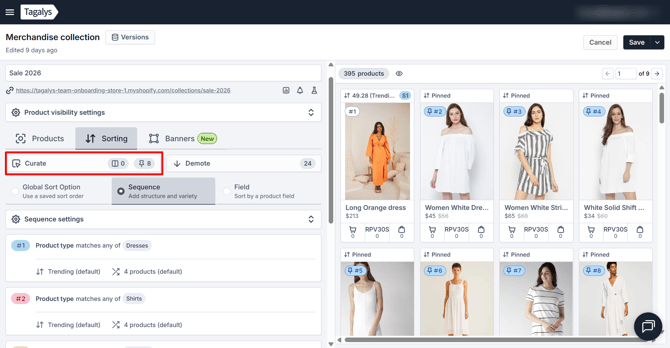
Step 2: Select Products
Search for and select the products that need to be grouped together into the Look.
.png?width=670&height=348&name=Merchandise%20collection%20-%20Tagalys%20(1).png)
Alternatively, select products from the left side to group them together as a Look
.png?width=670&height=350&name=How%20to%20create%20looks_%20-%20Google%20Docs%20(2).png)
Step 3: Create the Look
Click on the Create Look icon as highlighted on the screenshot below..png?width=670&height=348&name=Merchandise%20collection%20-%20Tagalys%20(2).png)
Step 4: Configure Look Positioning
Select whether the Look should use:
- Static Positioning to remain fixed in a specific position
- Dynamic Positioning to move within the collection based on the active sort order
.png?width=670&height=348&name=Merchandise%20collection%20-%20Tagalys%20(4).png)
Note: Use this option when you want the Look to remain in a fixed position within the collection. Pinned Looks are especially useful for campaign launches, seasonal edits, homepage collections, and featured outfit placements.
Step 5: Manage created Looks
Once you click Create Look, it will appear in the selected position within the collection. Click the Looks section to view all created Looks. From here, you can:
- Go to position of the Look within the curate panel
- Pin Look to a specific position
- Unpin Look from the specific position
- Dissolve Look from being grouped together
.png?width=670&height=348&name=Merchandise%20collection%20-%20Tagalys%20(5).png)
While creating a Look, you can also reuse existing Looks across the store. Click on the Enabled Looks dropdown to browse and select previously created Looks. .png?width=670&height=348&name=Merchandise%20collection%20-%20Tagalys%20(6).png)
Enable Dynamic Positioning for a Look.
Dynamic Positioning allows a Look to move up or down within the collection based on the active sort order.
Dynamic Positioning is useful for keeping collections more dynamic for returning visitors while still maintaining grouped product merchandising..png?width=670&height=348&name=Merchandise%20collection%20-%20Tagalys%20(8).png)
Since the sort order is set to Trending, the Look is displayed in positions 14 and 15 within the collection based on the positioning of the product with the highest trending score within the Look. .png?width=670&height=348&name=Merchandise%20collection%20-%20Tagalys%20(9).png)