![tagalys-logo white.png]](https://support.tagalys.com/hs-fs/hubfs/tagalys-logo%20white.png?height=40&name=tagalys-logo%20white.png)
Two-factor authentication (2FA) adds an additional layer of security to the Tagalys dashboard by requiring users to verify their identity using an authenticator app when signing in.
Store admins can enforce 2FA for all users accessing their client's dashboard. Once enforcement is enabled, users who have not configured 2FA are notified in advance and given a specified notice period to complete the setup.
After the enforcement start date, users must configure 2FA before they can access the client's dashboard.
Note: A single 2FA enforcement setting applies to all stores associated with the client.
Store Admin's View
1. Identifying the 2FA Enforcement Status
When 2FA enforcement is not enabled for a client, a crossed-out shield icon appears beside Users & Permissions in the left navigation menu.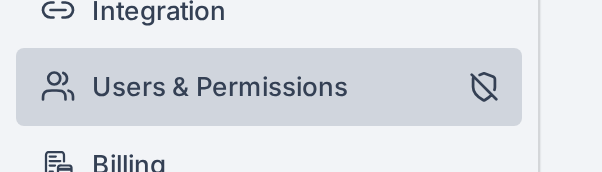
Hovering over the icon displays the tooltip: Two-factor authentication is not enforced.
The icon disappears once 2FA enforcement is enabled.
2. Enabling 2FA for the Admin Account
Before enforcing 2FA for other users, the store admin must first enable it for their own account.
Navigate to Users & Permissions in the left navigation menu.
A card displayed above the user list indicates the current 2FA enforcement status. An admin who does not have 2FA on their own account cannot enforce it: Enforce 2FA is greyed out, and the card links to their own 2FA setup. Refer to the User's View section below for the 2FA setup instructions.
3. Initiating 2FA Enforcement
Once the admin has enabled 2FA for their own account, the Enforce 2FA button becomes available.
Click Enforce 2FA to initiate the enforcement process.
4. Selecting the Enforcement Start Date
The admin can choose when 2FA enforcement should take effect.
The following options are available:
- Immediately
- In 2 days
- In 7 days
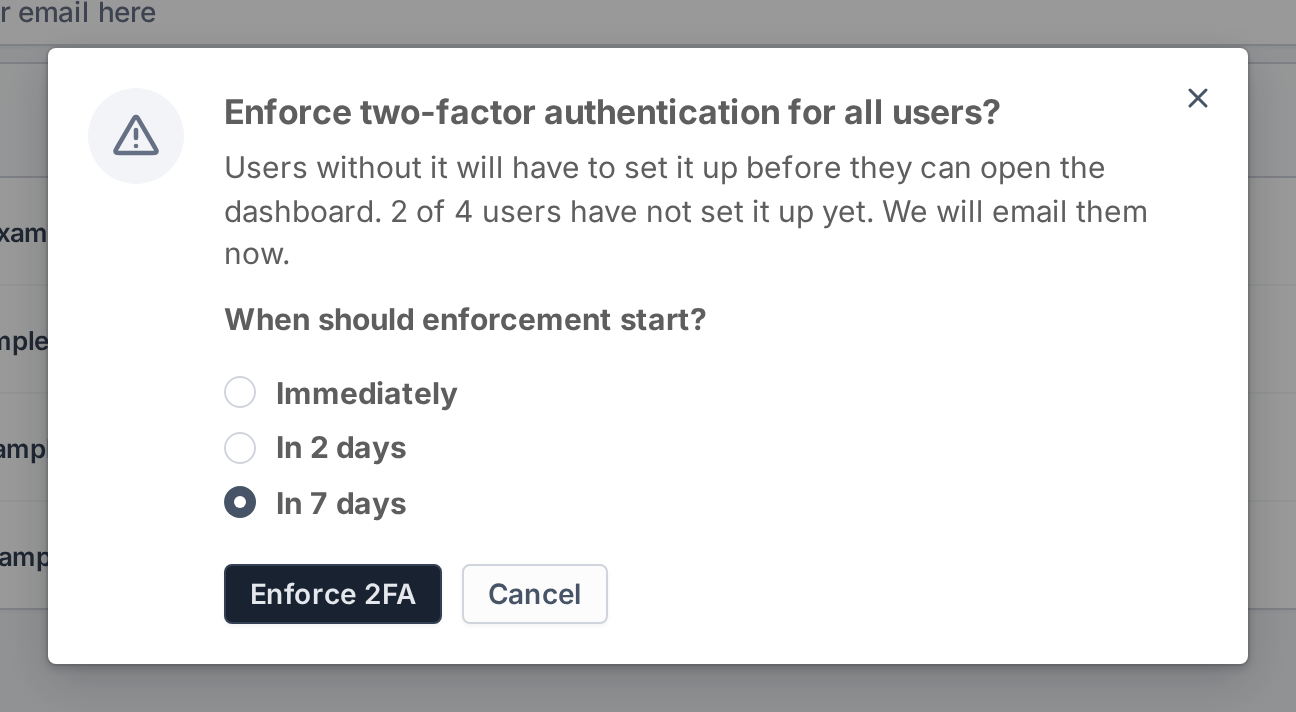 The confirmation dialog also displays the number of users who have not yet configured 2FA.
Once the admin confirms the enforcement schedule, an email notification is sent immediately to users who have not enabled 2FA.
5. Monitoring the Enforcement Notice Period
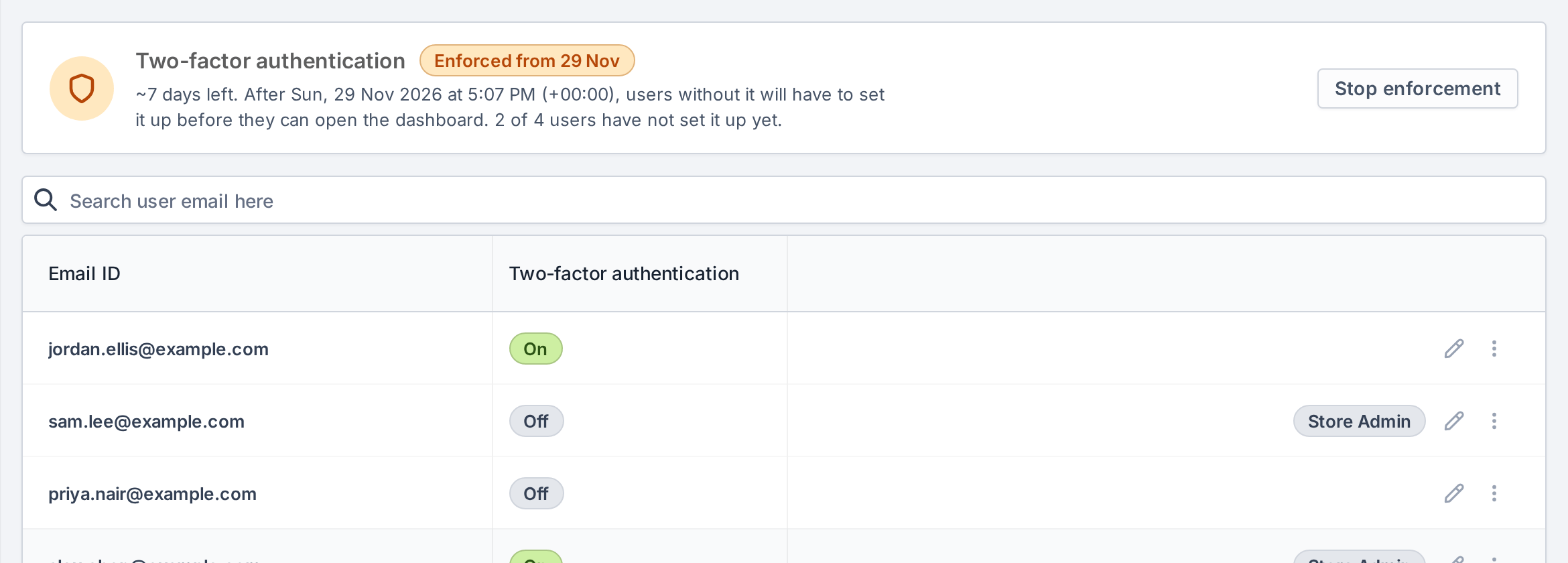
Until the selected enforcement start date, the 2FA status card displays:
- The scheduled enforcement start date.
- The remaining time before enforcement begins.
- The number of users who still need to configure 2FA.
The user list also indicates which users have already enabled 2FA, allowing the admin to track setup progress.
6. Managing Active 2FA Enforcement
Once the scheduled start date is reached, the status card displays Enforced.
From this point onwards, users who have not configured 2FA must complete the setup before they can access the client's dashboard.
The store admin can disable enforcement at any time by clicking Stop enforcement.
User's View
1. Identifying Whether 2FA Is Enabled
Users can check whether 2FA is enabled for their account through the dashboard header.
An orange dot displayed beside their email address in the top-right corner indicates that 2FA has not been configured.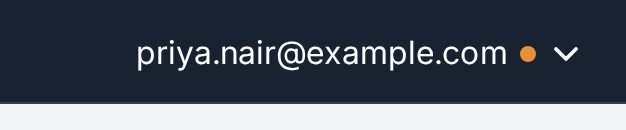
This indicator appears for all users who have not enabled 2FA, regardless of whether their client has enforced it.
Users can also:
- Click their email address in the top-right corner.
- Select Two-factor authentication from the dropdown menu.
- The orange dot beside this option indicates that 2FA is currently disabled.
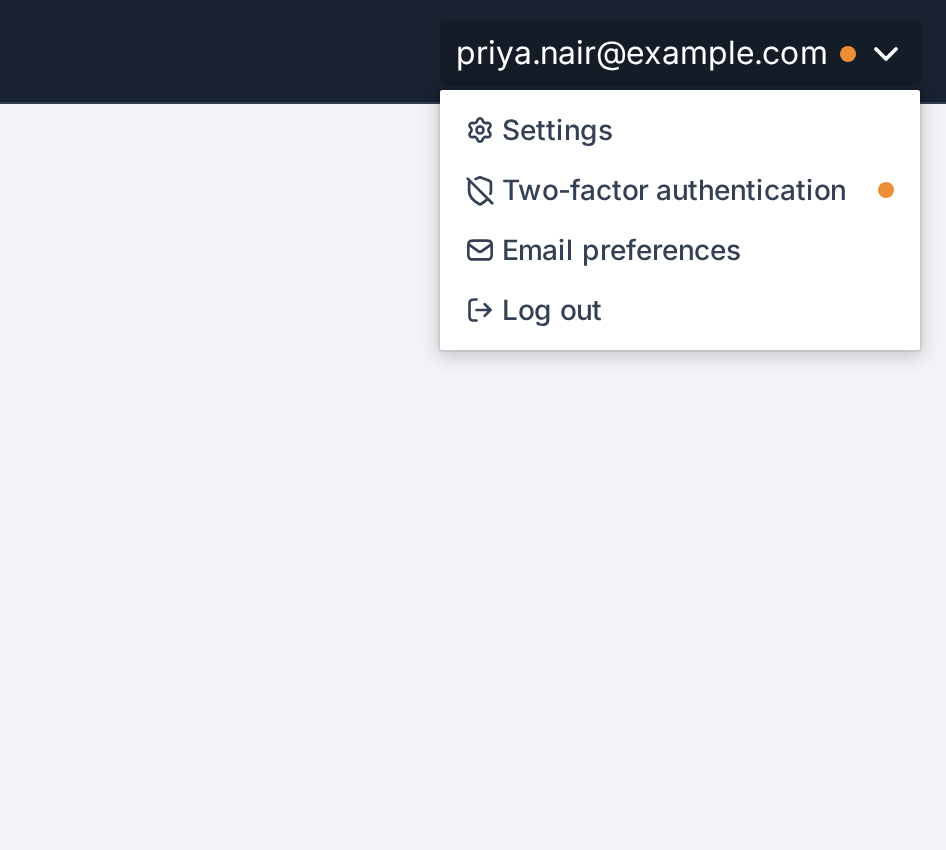
Selecting this option opens the 2FA settings page.
2. Receiving the 2FA Enforcement Notification
When a store admin enables 2FA enforcement, users who have not configured 2FA receive an email notification.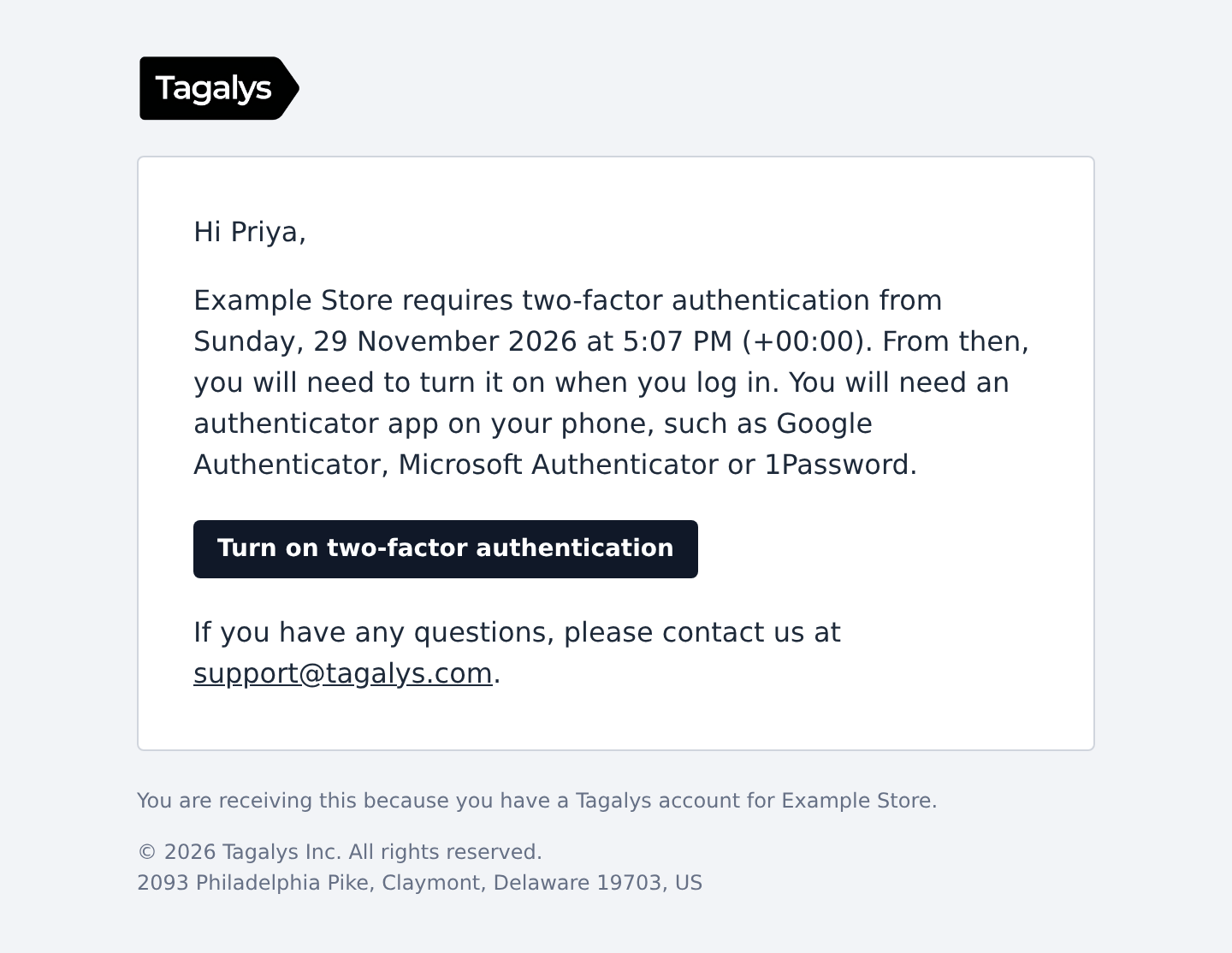
The email includes:
- The scheduled enforcement start date.
- A button that takes the user to the 2FA setup page.
Users are expected to complete the setup before the enforcement date to avoid interruption to dashboard access.
3. Viewing the Enforcement Countdown
During the notice period, users can see a countdown indicator in the header of the client's dashboard.
For example:
~7 days left to enable 2FA
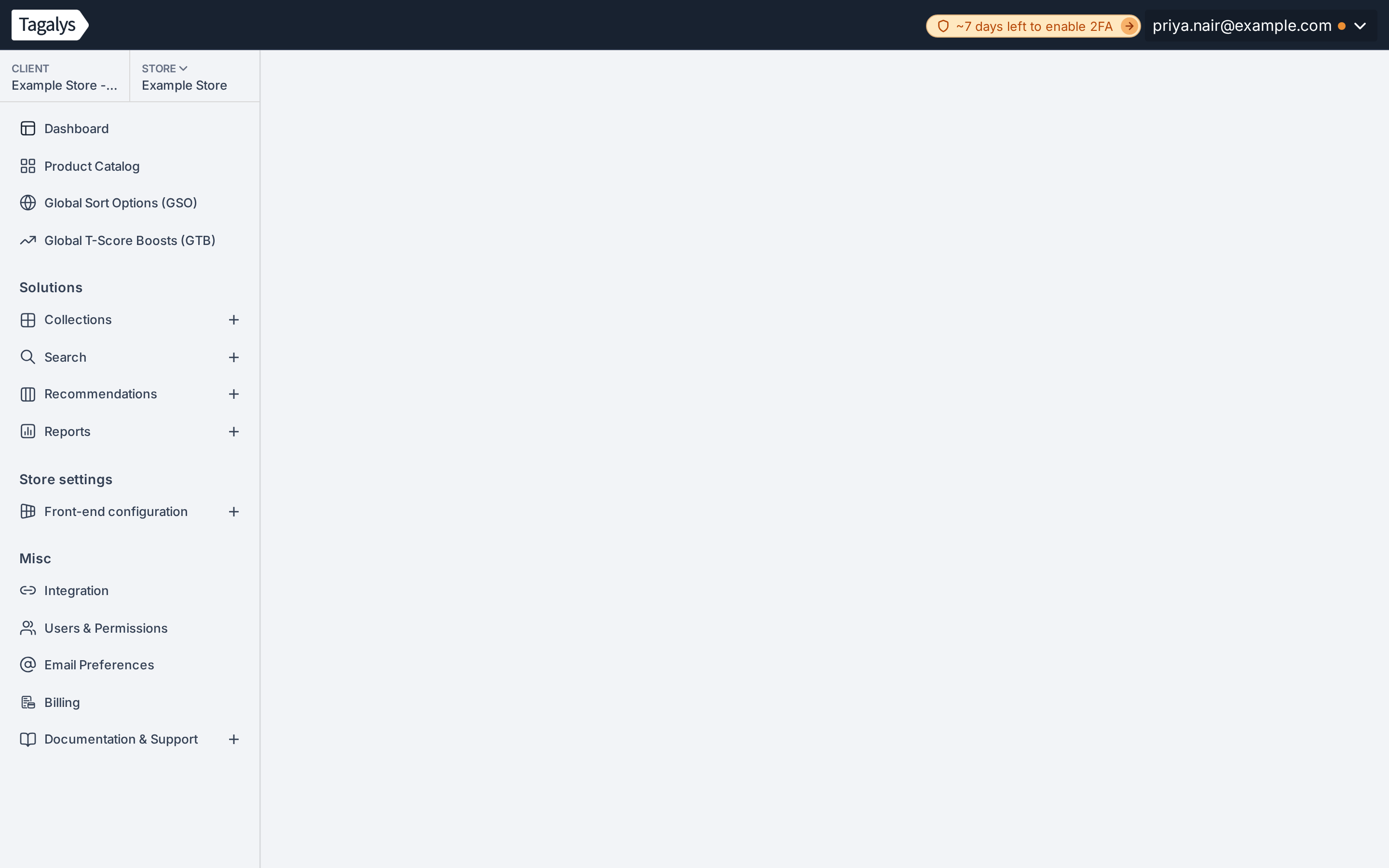
Clicking the countdown indicator opens the 2FA settings page.
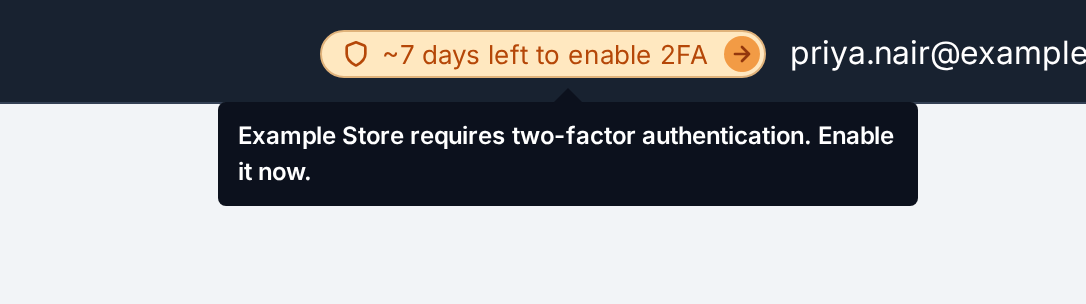
Hovering over the indicator displays a tooltip identifying the client that requires 2FA setup.
4. Accessing the Dashboard After Enforcement Begins
Once the enforcement start date is reached, users who have not configured 2FA are redirected to the 2FA settings page when they attempt to access the client's dashboard.
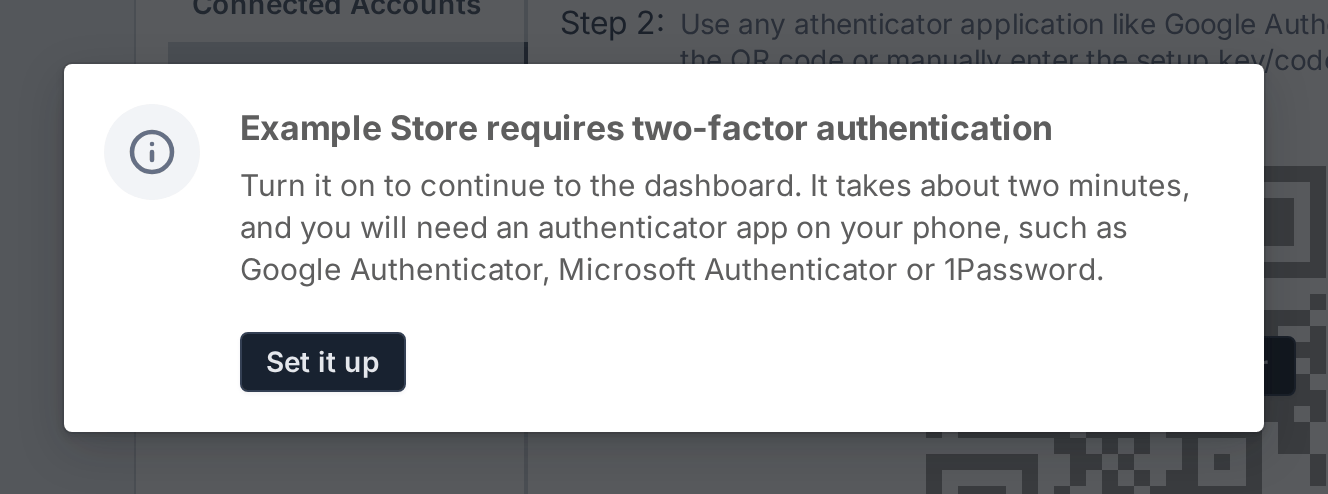
Users must complete the setup to proceed.
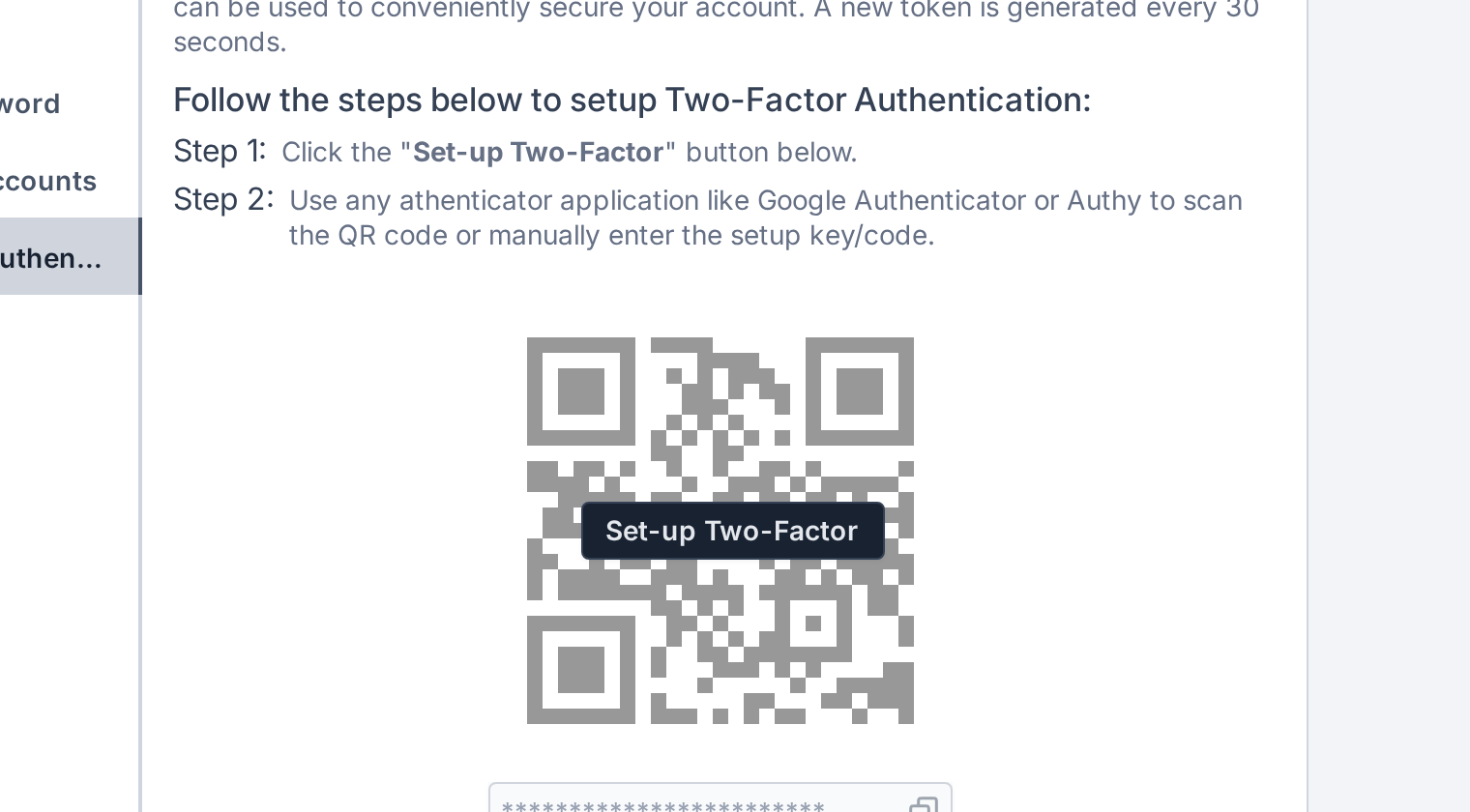
5. Starting the 2FA Setup
On the 2FA settings page, users can begin configuring two-factor authentication for their account.
Follow the on-screen instructions to proceed with the setup.
6. Scanning the QR Code and Verifying the Account
Users must use an authenticator app to complete the setup.
Supported authenticator apps include:
- Google Authenticator
- Microsoft Authenticator
- 1Password
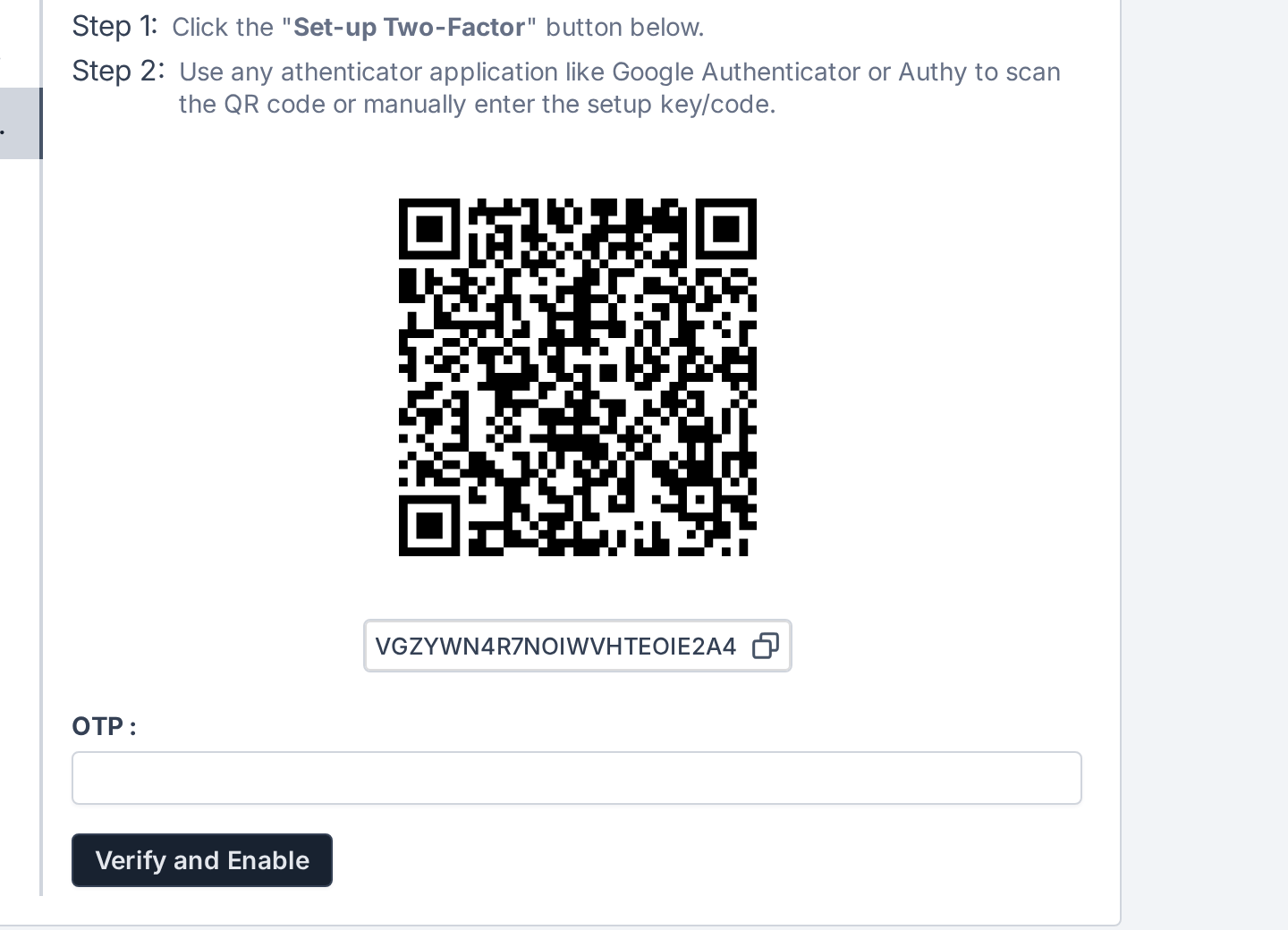
To configure 2FA:
- Open the authenticator app on your mobile device.
- Scan the QR code displayed on the Tagalys 2FA settings page.
- The authenticator app generates a six-digit verification code.
- Enter the six-digit code on the Tagalys dashboard to verify the setup.
7. Saving the Backup Codes
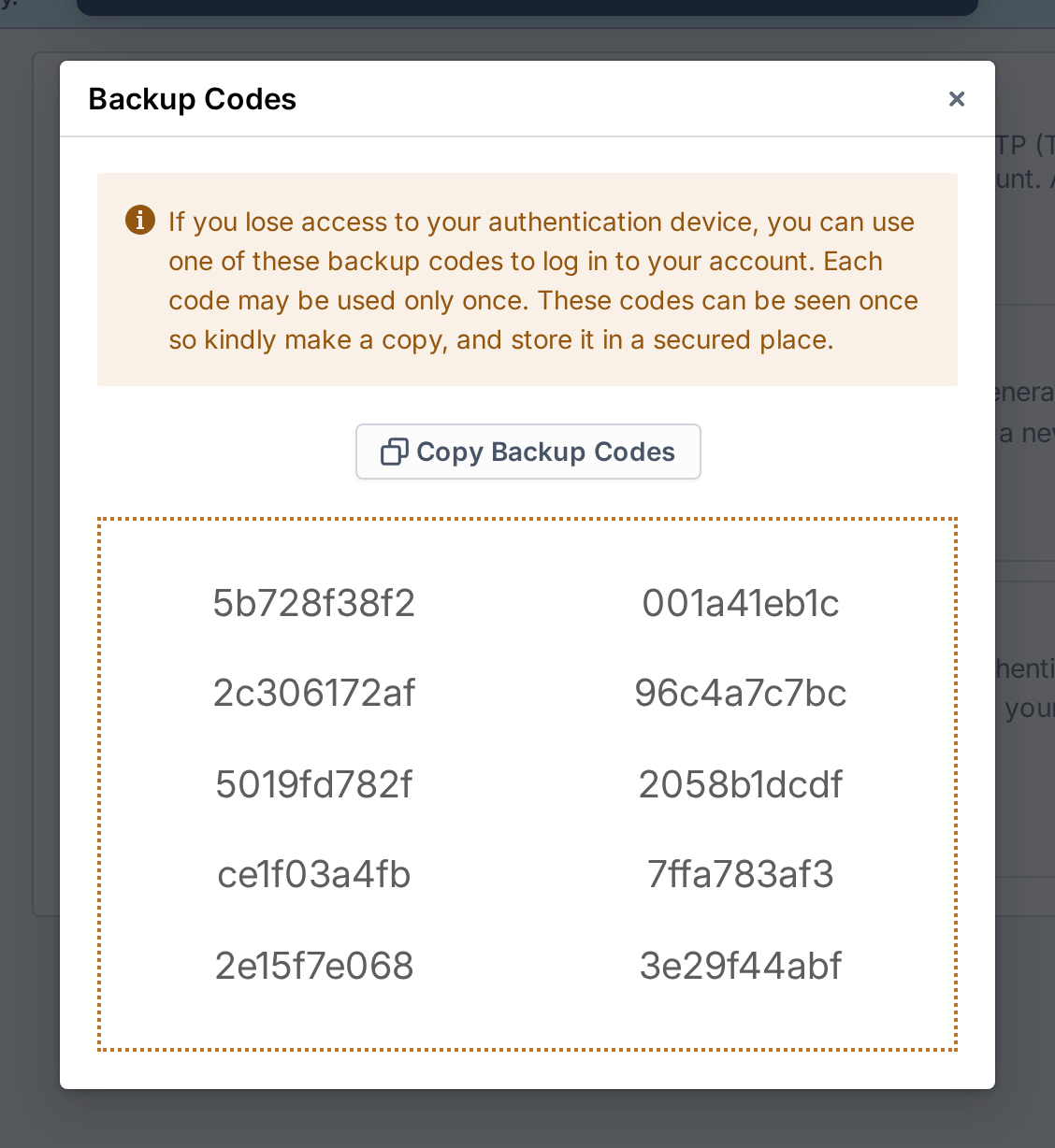
Once the verification is successful, backup codes are displayed.
Users should save these codes in a secure location.
Important: Backup codes are displayed only once. They can be used to access the account if the user loses access to their authenticator app or mobile device.
8. Continuing to the Dashboard
After completing the 2FA setup and saving the backup codes, users can click Continue to the client to access the dashboard.
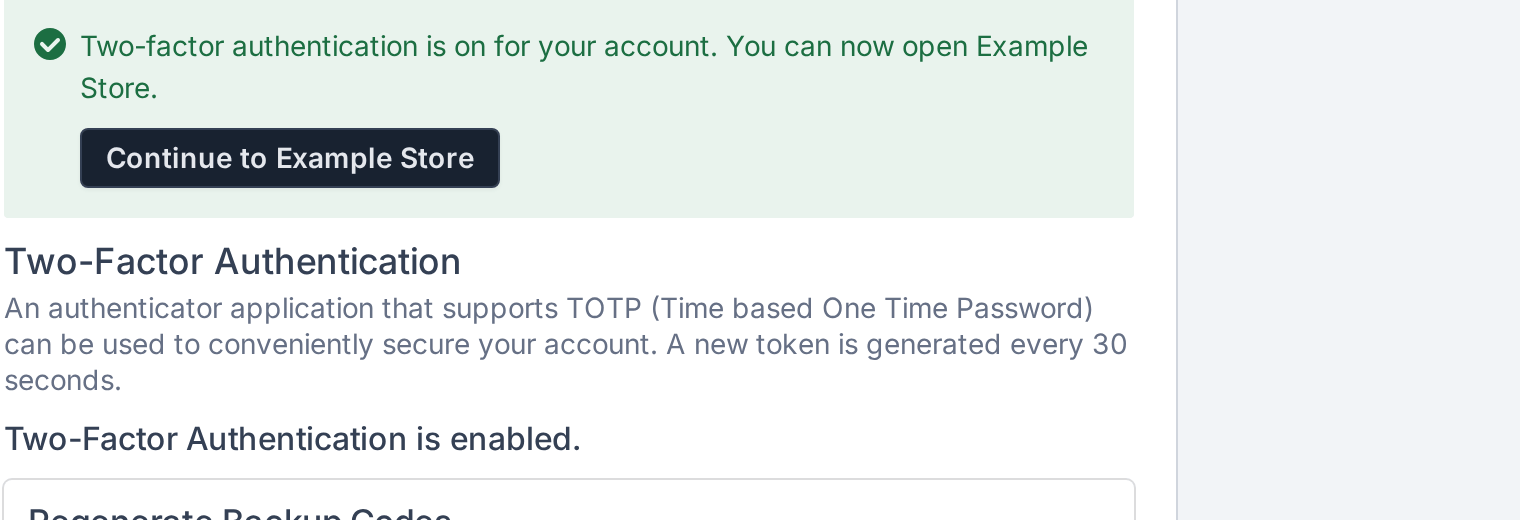
Users do not need to sign in again after completing the setup.
9. Using 2FA During Subsequent Sign-ins
Once 2FA is configured, users are prompted to enter a verification code from their authenticator app during subsequent sign-ins.
Users can select Trust this device to skip the verification code requirement on that browser for the next 14 days.
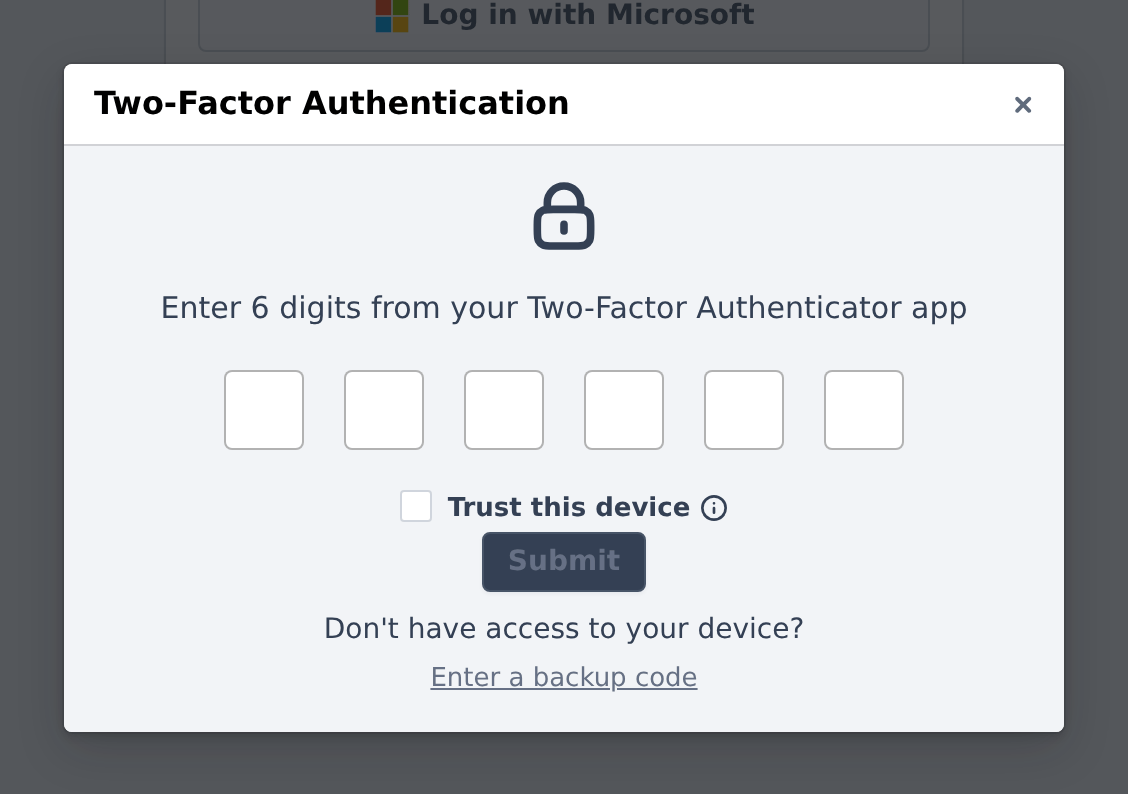
After this period, users will be prompted to enter a verification code again.